
Extra widgets
This page covers four smaller widgets: the image strip, the stopwatch, the notepad and item search. Widgets explains how to open the overlay and how the hide, edit, move and delete buttons work.
Image strip
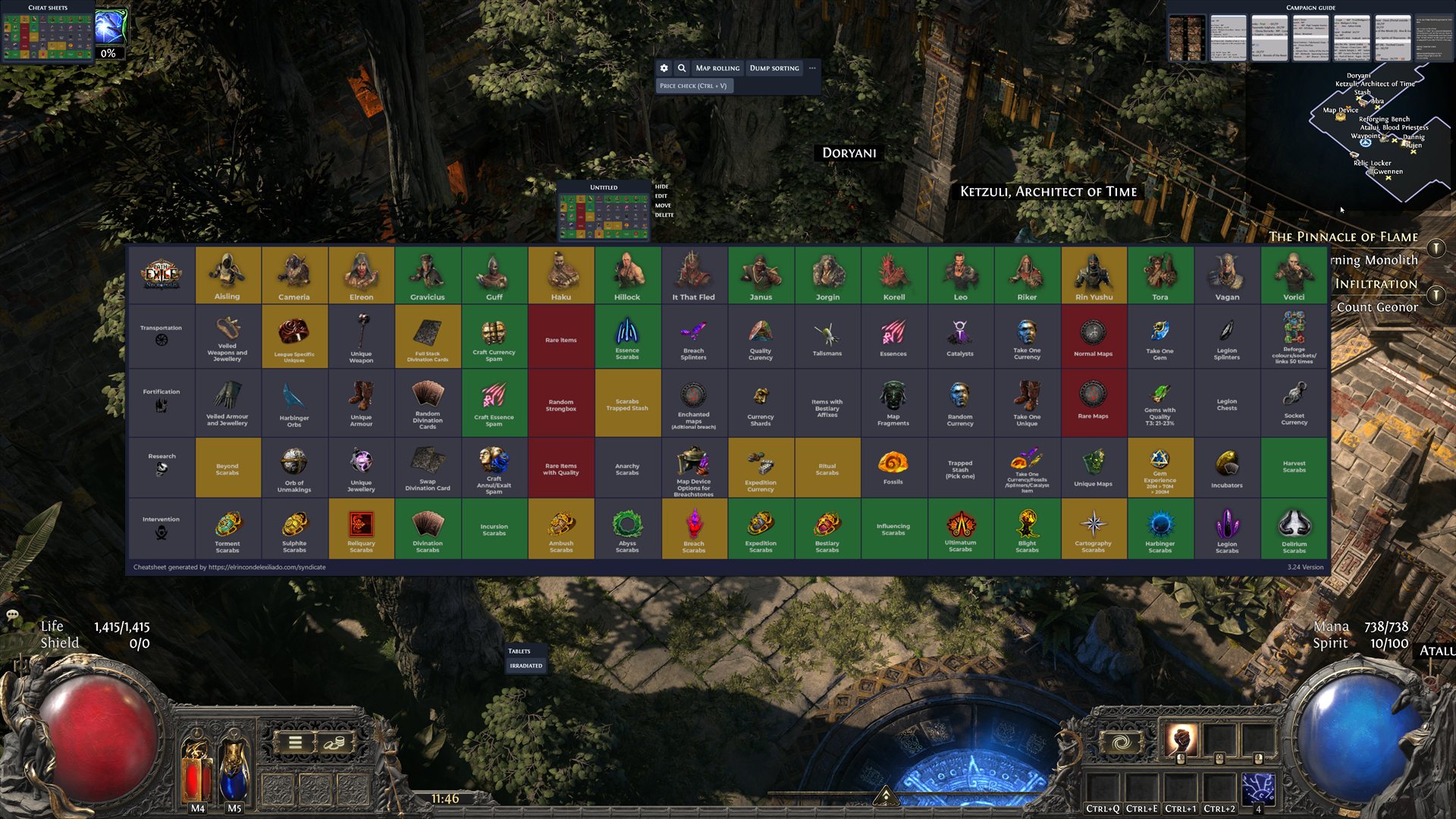
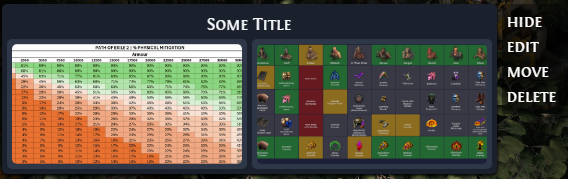
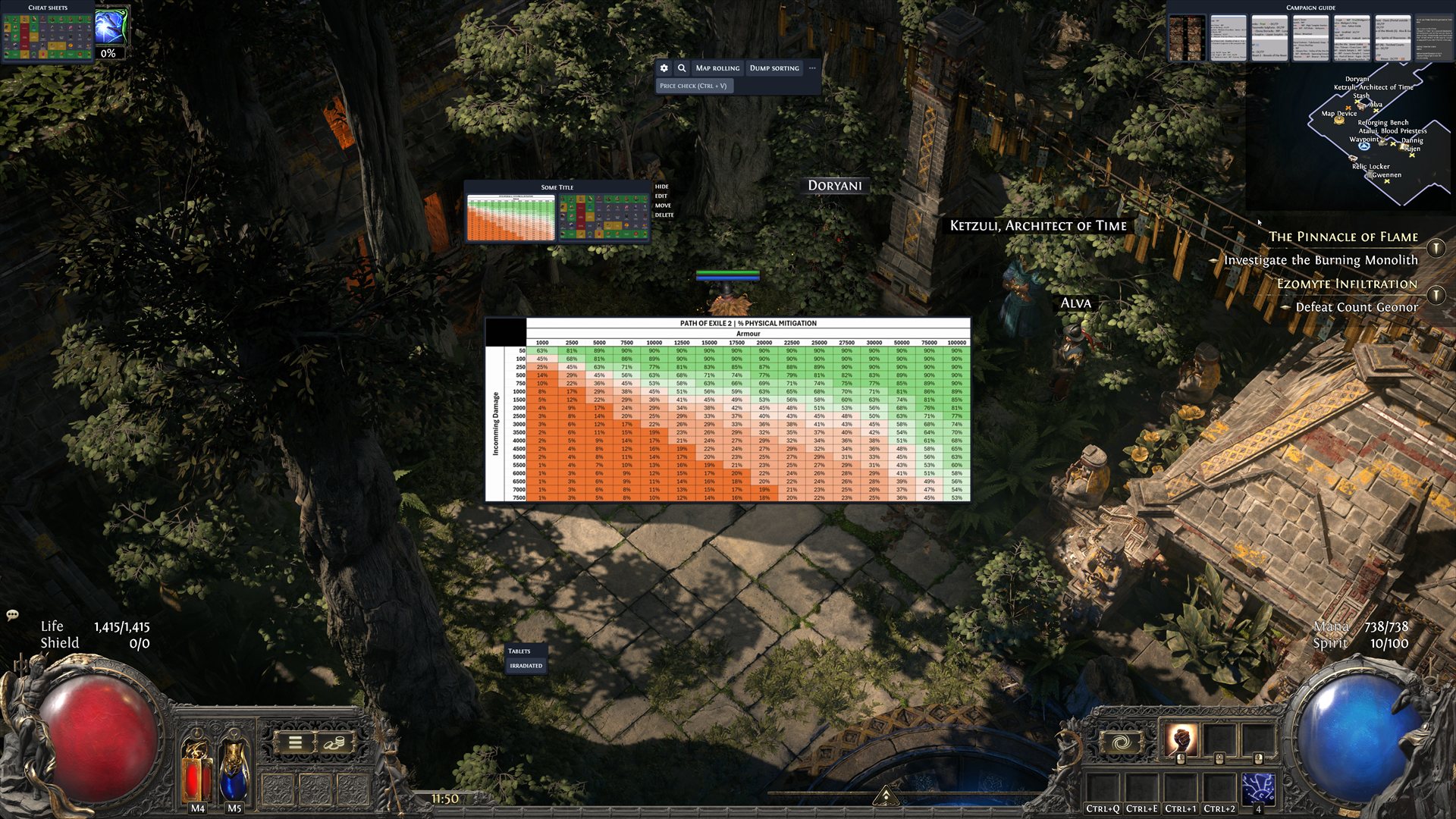
The Image strip widget shows a row of images over the game, such as cheat sheets. Hover over an image to show it at full size in the center of the screen, up to the screen height. A large, high resolution image is the easiest to read.
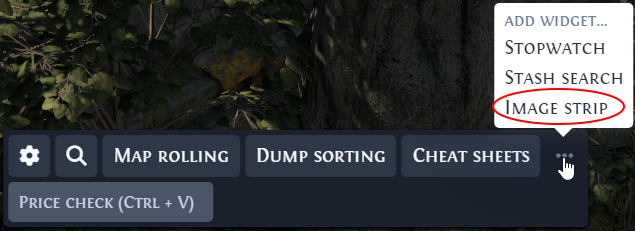
To add a strip, open the overlay (Shift + Space by default), hover over the three dots and click Image strip. You can add more than one. A new strip has no title, shows Untitled, and has no images until you add them.
Kalandra no longer includes the Path of Exile 1 syndicate cheat sheet that the Cheat sheets strip showed. When Kalandra updates from a version that had it, it removes that sheet from each strip. It also removes a strip whose only image was that sheet, unless you gave the strip your own title.
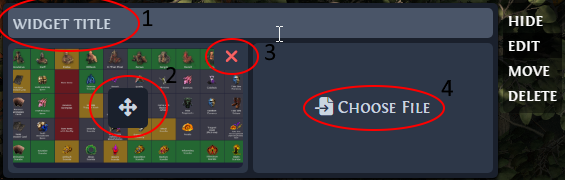
Click edit on the strip to change it:
- Type a title in the
widget titlefield. - Drag the arrows button in the middle of an image to change the order of the images.
- Click the red cross on an image to remove it.
- Click
Choose Fileto add an image.
Click edit again to finish.
Kalandra copies each added image into the apt-data\files folder of its data folder (%APPDATA%\kalandra on Windows), so you can move or delete the original file. It adds PNG, JPEG, GIF, WebP, AVIF, BMP and ICO images, and does not add another kind of file or an image larger than about 16 MB. When it does not add a file, a red message under Choose File says so.
Stopwatch
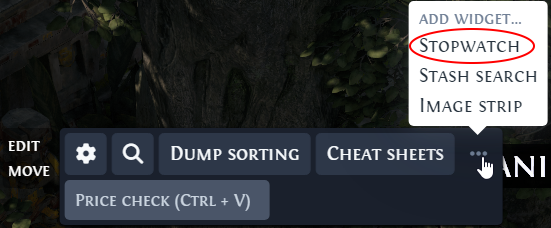
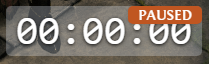
The stopwatch counts hours, minutes and seconds. To add one, open the overlay, hover over the three dots and click Stopwatch. You can add more than one, and each has its own hotkeys. A new stopwatch appears near the center of the screen and shows paused.
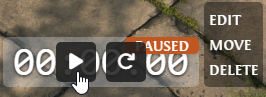
Hover over the stopwatch to show its buttons. The play button starts it, the pause button stops it, and the circular arrow resets the time.
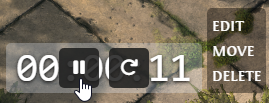
To control the stopwatch while you play, click edit on it. Its page in the Settings window has two hotkeys, Start and Pause and Reset, which start as Not Set. Set them and click Save. The hotkeys work while the game window is active, without opening the overlay.

A running stopwatch stays on screen after you close the overlay, and so does a paused one that holds one second or more. A new or reset stopwatch closes with the overlay. The stopwatch has no hide button: delete it to remove it.
Kalandra does not save the time. When Kalandra starts again, every stopwatch starts at zero.
Notepad
The Notepad widget is a text box for your own notes. To add one, open the overlay, hover over the three dots and click Notepad. You can add more than one. A new notepad is named Notepad and shows Type your notes here… until you type in it.
Kalandra saves the text in its config file when you close the overlay, so the notes are still there after a restart.
Click edit on the notepad to change it:
- Type a new title in the field at the top.
- Click the minus and plus buttons next to
Width:to switch between three widths: small, medium and large. A new notepad is medium.
Click edit again to finish.
Item search
The Item search widget finds the price of an item by its name, so you can check an item that you cannot copy in the game. Click the magnifier in the main button bar to show it.
- Choose the kind of item after
Type of Item::Skill Gems,UniquesorBase Items.Base Itemsis selected when Kalandra starts. - Type the name in
Search by name…. The widget lists the matches when there are five or fewer. Until you type three characters, and while more than five items match, it shows this message:Too many items found, enter the name more precisely.When three or more characters match no item, it showsNo items found. - Click
Selecton a match. Kalandra adds the item to the row at the top of the widget, with its price from Kalandra's price service when the price file has one. - Click an item in the row to open the price check for it. A skill gem is checked at gem level 1.
The row holds five items, sorted from the highest price to the lowest. Selecting a sixth item starts a new row with it, and selecting an item that is already in the row does nothing. Reset items clears the row.
Item search has only the hide and move buttons. It has no settings and no hotkey.