
Price check
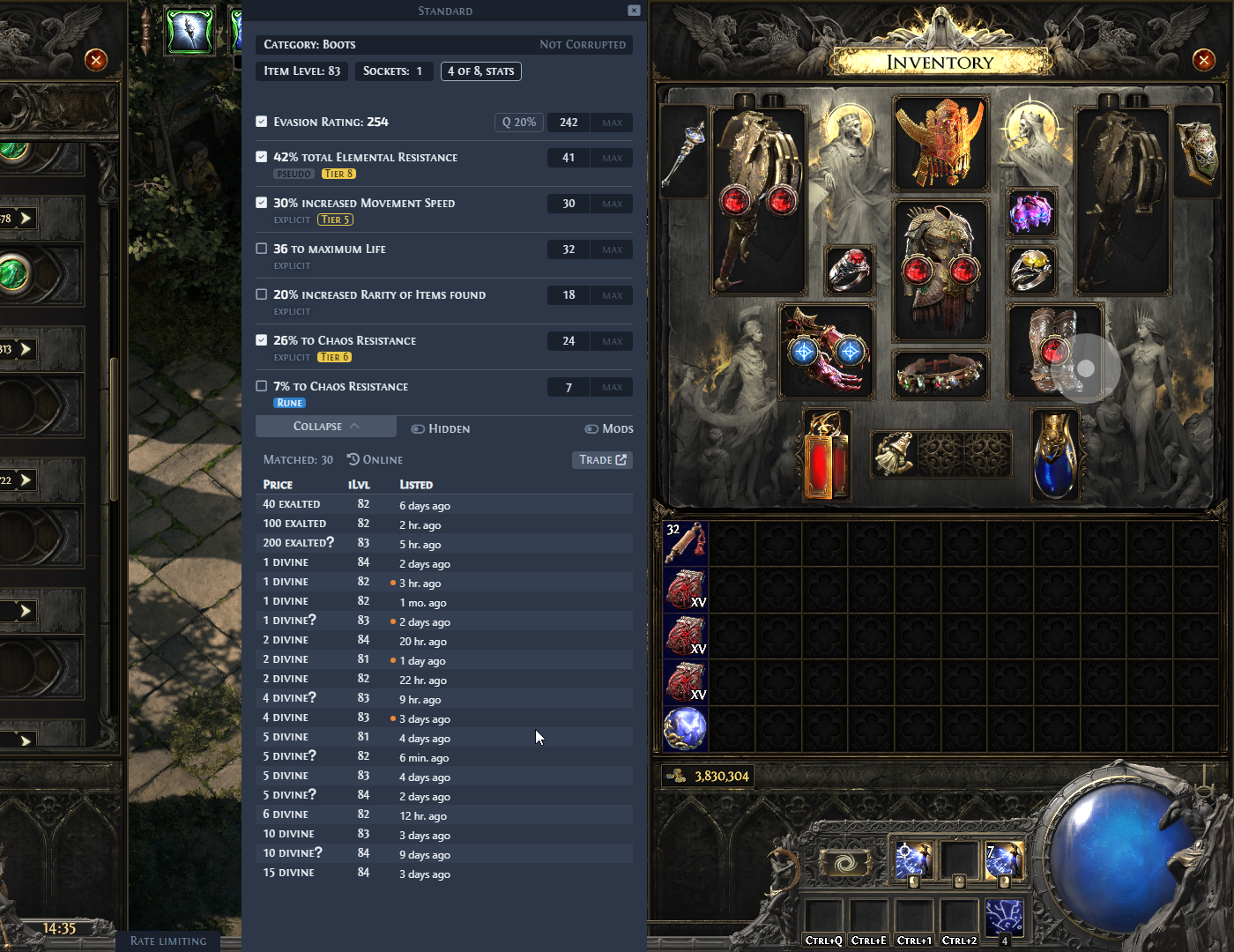
A price check reads the item under your cursor in Path of Exile 2 and opens a window with a price estimate, filters built from the item's stats, and matching listings from the official trade site with an experimental suggested price. The window opens next to the game's side panel on the side of the screen where the item is: beside the inventory for an item on the right, beside the stash for an item on the left. It does not cover that panel.
Start a price check
Point at an item and press a price check hotkey. Kalandra makes the game copy the item text with its advanced item descriptions and reads that text from the clipboard, as Nothing happens explains.
| Hotkey | Default | What the window does |
|---|---|---|
| Auto-hide Mode | Ctrl + D | Keep holding Ctrl and move the cursor into the window, then release it. A click in the window also keeps it open. If you release Ctrl first and move the cursor away from the item, the window closes. |
| Open without auto-hide | Ctrl + Alt + D | The window takes focus and stays open until you close it. |
Change both in Settings, Hotkeys page, under Price check. The Auto-hide Mode hotkey is Ctrl or Alt plus one key, and its Ctrl or Alt is the key you hold. In Auto-hide Mode, once the cursor is in the window, moving it out returns you to the game and closes the window. In both modes, the title bar's close button closes it.
To check item text copied outside the game, press the overlay key (Shift + Space by default) and paste the text into the Price check (Ctrl + V) box of the main button bar. The window opens as with Open without auto-hide.
If nothing happens, read Nothing happens. If the window shows no stats, read No stats to select.
Title bar
The title bar shows the selected league. Click it to open Settings, Price check page, where you change the league. The button with two arrows shows how many Exalted Orbs (or Chaos Orbs, see Primary base currency: under Settings) one Divine Orb costs. Click it for a table that converts 0.1 to 0.9 Divine Orb. A line under the title bar names a new version of Kalandra: on the Windows installer and the Linux AppImage once it has downloaded, and on the portable download, on macOS or with the --no-updates option as soon as Kalandra finds it.
Price estimate
The line under the item name shows what the item sells for. The estimate comes from Kalandra's price service, which collects poe.ninja's price data once an hour and serves one price file per league at https://kalandra.ashoal.com/prices/<league>.json. Kalandra downloads the file for the selected league when it starts and when you change the league. After that it downloads the file at most once every 31 minutes, and only if you price checked an item in the last 20 minutes. Kalandra sends no request to poe.ninja itself.
- The price is in your primary base currency (Exalted Orb by default), or in Divine Orbs when the item is worth about one Divine Orb or more.
- The small graph shows the price over the Last 7 days. An arrow marks a rising or falling price, and the percentage shows how much the price varied in that time.
- For an item traded on the currency exchange, the line also shows how much currency and how many items trade per hour (/hr), and Highest volume: shows the currency the item trades against most.
- Click the graph or the volume to open the item's poe.ninja page in your default browser.
For a stackable item with an estimate, a box under the results shows You have × with the value of your stack, and Stack × with the value of a full stack. For some items, such as boss fragments, a panel beside the window lists the other items of the set and the items the encounter drops, each with its estimate.
No estimate shows when:
- the league is a private league (its name ends with the PL number in brackets, such as
(PL12345)), - the realm is Hotcool, which the General settings offer for Traditional Chinese,
- the trade site does not list the league, or the price service has no file for it,
- the price file has no entry for the item, such as a normal, magic or rare weapon, armour piece or accessory.
Filters
The filters set what the trade search looks for. Kalandra turns some on by default; you choose the rest.
- The item name button shows what the search matches: a unique's name, a base type, or a category such as Category: Boots. When it shows a category, click it to search by the base type instead, and click again to go back. Corrupted or Not Corrupted next to it switches the corrupted filter.
- Property buttons such as Item Level:, Sockets:, Quality: and Stock: turn on or off when you click the name. Type a value in the field, or right-click the field to clear it.
- The stats button (for example 4 of 8, stats) counts the stat filters that are on and hides or shows the stat list. It reads Stats ignored when none is on.
- Pseudo and Base item tabs appear above the stats for an item that has value as a crafting base, for example a magic jewel, or one with extra sockets, more than 20% quality or a high item level (not for a jewel or waystone). Pseudo is the default. Base item searches for the exact base type and its modifiers.
Each stat row has:
- a checkbox: click the stat text to turn the filter on or off,
- a minimum and a maximum field. Kalandra fills the minimum with the item's value minus the Fill stat values percentage (10% by default), or the maximum for a stat where lower is better. For a unique it takes that percentage of the roll range, and a slider shows the range. An exact search takes at most 2%: the Base item tab, Mageblood, a normal or unidentified item, and a flask, relic or wombgift that is not unique. Kalandra takes 0% for a tablet that is not unique, the Charm Slots stat, a magic item you cannot modify and a unique's stat at its best roll. Right-click a field to clear it, and press
Enterin a field to search, - a tag that names where the stat comes from (explicit, implicit, pseudo for a pseudo stat, Augment and others), and Tier 1 or Tier 2 for a modifier of that tier. Always show tier shows every tier,
- Q 20% on armour, evasion, energy shield and DPS filters of an item you can still modify: the value is for the item at 20% quality, or at its own quality when that is higher,
- a crossed eye icon on a filter that Kalandra hid. Point at it to read why.
Under the stats, Collapse hides the stat list, and Hidden (Explicit for a Waystone) switches the list to the filters Kalandra hid as less useful. With Mods on, pointing at a filter shows the modifiers it comes from.
Search
The window searches the trade site by itself for a unique, unidentified or veiled item, a charm, an item without a trade site category, such as currency or a relic, and, with the suggested price on, a normal, magic or rare item. The two toggles under Perform an auto search, when pressing turn this off for each hotkey.
For any other item, choose the filters, then click Search, press Enter in a value field, or move the cursor from the filters straight onto Search. A change to any filter outside the listing menu brings back the Search button, and a change in the listing menu searches again at once.
How often to show tips when price checking (Help settings) sets how often a tip shows before a search.
Trade results
Matched: shows how many listings the trade site found, with + when the count is not exact. The listing menu next to it (a clock icon with Instant, Online or Offline) opens when you point at it:
- listing type: Instant or Online, Instant (the default: listings you can buy at once), Online, or Offline & Online,
- listed time: Listed: Any Time, or 1 Day Ago up to 2 Months Ago,
- the league to search,
- currency: Any Currency, Exalted Orbs, Chaos Orb, Divine Orb or Ex/Div Orbs.
The menu turns orange when a currency or a listed time of a week or less is set, and names a league other than yours.
The table lists up to 20 listings, cheapest first. Columns: Price, Stock for stackable items, iLvl when the item level filter exists, Level for gems, Sockets for gems and for a staff, wand or sceptre (most of any socketed gem), Quality for gems or when the quality filter is on, Listed, and Seller when Show seller is set.
- A price in a currency other than your primary base currency or Divine Orbs is followed by its value in brackets, in your primary base currency or, for a large amount, in Divine Orbs.
× Nafter a price means the same seller has N listings, grouped into this row. It shows for 3 or more, and only with Show indication on collapsed listings on.?after a price means the item has no price note of its own: the price comes from the seller's stash tab name.- The dot before the listed time shows the seller's status: pink for online, orange for away, red for offline. Listings you can buy at once have no dot.
- You marks your own listings, found by Account name, in demand a listing the trade site flags as in demand, and Gone a listing it reports as gone. They follow the listed time, or the seller when Seller shows.
- Hold
Shiftand point at a listing to see the listed item, as set by Show item when hovering over price.
When more than 15 listings show and fewer than 5 of them ask for Chaos, Exalted or Divine Orbs (or for fewer than 30 Orbs of Augmentation, Regal Orbs or Orbs of Transmutation), the window shows Mostly non-standard currency: with Filter by Exalt/Divine, which sets the currency to Ex/Div Orbs.
When the augments in the checked item are worth more than the first listing plus an Orb of Extraction, a red box under the results shows the sum: augment value, minus the Orb of Extraction, equals what is left.
The Trade button opens the same search on the trade site. See Built-in browser.
Bulk exchange
For currency and other items sold on the trade site's bulk exchange, such as each level of an uncut gem, the window shows exchange offers instead of listings. It does this when no stat filter is on and Kalandra's item data has a bulk exchange ID for the item.
- Matched: has three buttons, Exalted Orb, Chaos Orb and Divine Orb, each with the number of offers asking for that currency. Click one to see its offers. The window first shows the one with more offers out of Divine Orb and your primary base currency.
- The columns are Price (currency per item), the ratio the seller offers (for example
10 / 41is 10 currency for 41 items), Stock, Fulfill (how many times the seller's stock covers that trade, with a warning icon when it does not cover one), Listed, and Seller when Show seller is set. - The listing menu offers Online in League, Online (the default) and Offline & Online, and the league.
- With the Stock: filter on, only offers with at least that stock show.
Item editor
A small square at the right end of the property buttons opens the item editor when you point at it. The editor prices the item as if you changed it. It appears for a weapon or armour piece that is not unique, when you can still modify it or it has sockets, and for a ring, amulet or jewel that is not unique and that you can still modify.
- Augments, for weapons and armour. The top row shows the item's sockets and the total value of their augments. Pick an augment from the Rune, Soul Core, Idol, Legacy and Other tabs, then click a socket to put it there. A socket with a red border is bound to its augment and does not change.
- Save for: chooses which items a saved set of augments applies to: the item's class, Caster Weapons (wands and staves), Martial Weapons (bows, crossbows and melee weapons), Armours or Default (every item). Save stores the current sockets for that choice, and Clear Saved removes them. On the next price check of a non-unique item whose sockets are all empty, Kalandra fills them with the saved augments: the item class first, then the weapon or armour group, then Default.
- Quality, for rings, amulets and jewels. Pick a catalyst and an amount (0, 20, 30, 40 or 50; up to 70 for a Breach Ring; 0 or 20 for a jewel) to see the filters as if the item had that quality. The price on the right is the catalyst price times the amount. When the item already has catalyst quality, the square shows that catalyst, and the catalyst you pick replaces that quality instead of adding to it.
Built-in browser
With Enable builtin browser on, Trade opens the search in the built-in browser, and the arrow button next to it opens your default browser. With it off, Trade opens your default browser. Press the overlay key to switch between the built-in browser and the game.
Requests that Kalandra sends to the trade site use the sign-in of the built-in browser, which is how a private league search works. Its requests to other sites, such as its price service, send no cookies. When you turn the setting on, a warning about POESESSID appears. POESESSID is the cookie that keeps you signed in to pathofexile.com, and the built-in browser stores it where Kalandra's code can read it.
Rate limits
The trade site limits how many requests a client sends, and it blocks a client that sends more. Kalandra queues every request to stay under the limits the site reports. Searches, listings and bulk exchange searches each have their own limits. When the site has blocked one of them for a time, it reports the seconds left, and Kalandra sends no request of that kind until they are over. If a search would wait 1.5 seconds or more, the window shows Retry after N seconds in the Trade site request failed box instead of waiting. The Rate limiting button at the bottom of the screen, beside the window, turns red while requests wait. Click it to see each limit and its queue.
Errors
- An error occurred while parsing the item or Unknown Item: the window shows the copied text and Reload fallback data, which downloads the trade site's current item and stat lists in English. If it finds new entries, Retry Item checks the item again. A unique that only the trade site's lists have is checked even when its base type is new too: the search uses the copied base type text. The lists help only if the game is in English.
- A requirements line that Kalandra cannot read, or a
{ ... }modifier line whose prefix, suffix or tier it cannot read, does not stop the check: the item has no Req. Level: filter, or that modifier is not counted as a prefix or suffix. A modifier line that Kalandra cannot match to a stat the trade site searches for its modifier type shows as Not recognized modifier, without a filter. - POE2 language doesn't match Kalandra: set the same language in the game and in the General settings.
- Trade site request failed: Retry sends the search again and Browser opens it in the built-in browser. Read Query is too complex and Invalid JSON for the two common messages.
- Failed to load leagues: read Failed to load leagues.
- For an unidentified unique, the window lists the uniques with that base type. Click the one you have.
Settings
Open Settings, Price check page, or click the price check title bar. Changes apply when you click Save.
| Setting | Default | What it does |
|---|---|---|
| League and Refresh | a league from the list | The league to search and estimate. Refresh loads the list again. |
| or Private League | empty | A private league name. See Private leagues. |
| Account name | empty | Your account name, so your own listings show You. |
| Show a suggested price (experimental) | on | Shows the suggested price line over the listings, searches at once for a normal, magic or rare item and ticks the valuable stats of a rare. Under it, Price a stash tab in the background, off by default, turns on stash prices, and unchecking the suggested price turns it off. |
| Show seller | No | Adds a Seller column with the Account name or the Last character name. |
| Fill stat values | 10% | How far from the item's value the minimum (or maximum) starts, from 0 to 50. Exact value sets 0. An exact search takes at most 2% (Filters). |
| Primary base currency: | Exalted Orb | Exalted Orb or Chaos Orb, for estimates, the title bar rate and prices in brackets. With Chaos Orb, these show in Exalted Orbs while one Divine Orb costs fewer than 5 Chaos Orbs. |
| Remember the Buyout Currency filter | off | Keeps the currency filter from the previous check. |
| Remember listing type | off | Keeps the listing type from the previous check. A currency exchange starts at Online, and an item search after Online in League starts at Instant. |
| Always select "Stock" filter | off | Turns on the Stock: filter for a stack of more than one. |
| Show Currency Exchange volume per hour: | Both | None, Currency / Hour, Items / Hour or Both. |
| Show memorized cursor position | on | Draws a circle where the cursor was when you pressed the hotkey. |
| Show item when hovering over price | SHIFT + hover | off, SHIFT + hover or hover to see a listed item. |
| Default all filters to enabled | off | Turns on every stat filter at the start. |
| Always show tier | off | Shows the tier of every modifier, not only tiers 1 and 2. |
| Enable builtin browser | off | Opens Trade in the built-in browser. |
| Show indication on collapsed listings | off | Off, the trade site shows one listing per seller. On, Kalandra gets every listing, groups each seller's listings itself and shows × N, which can send more requests. |
| Perform an auto search, when pressing | both on | One toggle for each price check hotkey. See Search. |
| Extra time to prevent spurious Rate limiting | 2 seconds | Added to each limit window the trade site reports, from 0.5 to 10. |
| Initial clipboard check delay(after copy-item keybind is pressed) | 48 milliseconds | How long Kalandra waits before it first reads the clipboard, from 5 to 400. |
The trade site Kalandra uses follows the app language. For a language other than English, Preferred trade site in the General settings switches it to www.pathofexile.com. See Settings.