
Quick start
This page defines the terms the other pages use, lists the default hotkeys and explains the price check window. To install Kalandra and check the game settings it needs, see Download.
Terms
- Overlay: the transparent window that Kalandra shows over the game window. Kalandra's windows and widgets appear on it.
Shift + Spaceopens the overlay so you can click it.Escape,Ctrl + WorShift + Spaceagain returns you to the game. - Widget: one panel on the overlay, such as Stash search or Stopwatch. The main button bar, a row of buttons in the top left corner of the overlay, has a button for each hidden widget. Widgets explains how to move, edit, hide and delete them.
- Price check window: the window that a price check opens. It lists the item's stats as filters and the matching items on the trade site with their prices.
- Advanced item descriptions key: the game's key that shows advanced item descriptions, with each mod's tier and value range.
- Built-in browser: a browser that Kalandra shows in the overlay, beside the price check window. It is off until you tick Enable builtin browser in Settings, Price check page. Price check explains what opens in it and why Kalandra's trade requests use its sign-in.
- Pseudo stat: a filter that adds up several mods of an item into one value, such as the total Elemental Resistance of three resistance mods.
How it works
When you press a hotkey that reads an item, such as Ctrl + D, Kalandra makes the game copy the text of the item under the cursor, with its advanced item descriptions, to the clipboard. Kalandra reads that text and shows the result on the overlay. Nothing happens lists the keys that Kalandra presses for the copy and where it reads the advanced item descriptions key.
Item text copied anywhere else also works: paste it into the Price check (Ctrl + V) box in the main button bar.
If the hotkey opens nothing, see Nothing happens. If the window shows no mods, see No stats to select.
Default hotkeys
| Hotkey | What it does |
|---|---|
Ctrl + D | Price checks the item under the cursor. The window closes when you move the mouse away. |
Ctrl + Alt + D | Price checks the item under the cursor and keeps the window open. |
Shift + Space | Opens and closes the overlay. |
F5 | Sends /hideout in chat, which takes you to your hideout. |
F9 | Sends /exit in chat, which returns you to character selection. |
Ctrl + MouseWheel | Switches stash tabs while the cursor is not over the stash. |
Settings lists the label and default of each hotkey and the pages that set the chat commands and other keys. Price check explains how to keep the Ctrl + D window open.
Hotkeys without a default
These actions have no hotkey until you set one:
- Item info and Map check in Settings, Hotkeys. They share one hotkey, which opens Map check for a waystone and Item info for most other items.
- Open item on wiki, Open item on PoEDB, Open base item on Craft of Exile, Find in Stash and Filter by in Settings, Item info.
- Four more chat commands in Settings, Chat, such as
/invite @last. - The entries of a Stash search widget, the keys of a Stopwatch and the Log item to csv key of the Library widget. Set them with the widget's edit button.
To open Settings, press Shift + Space and click the cog icon in the main button bar. Settings explains how to set a hotkey and which keys Kalandra cannot use, and it describes each page of the Settings window.
Before the first price check
- League. When no league is set, or the set league is no longer on the trade site, Kalandra picks one from the trade site's league list. The title of the price check window shows the league it searches. Click the title to open Settings, Price check, where you choose another league.
- Language. Set Language in Settings, General to the game's language. When they differ, the price check window shows "POE2 language doesn't match Kalandra".
The price check window
A price check of this ring, copied with its advanced item descriptions:
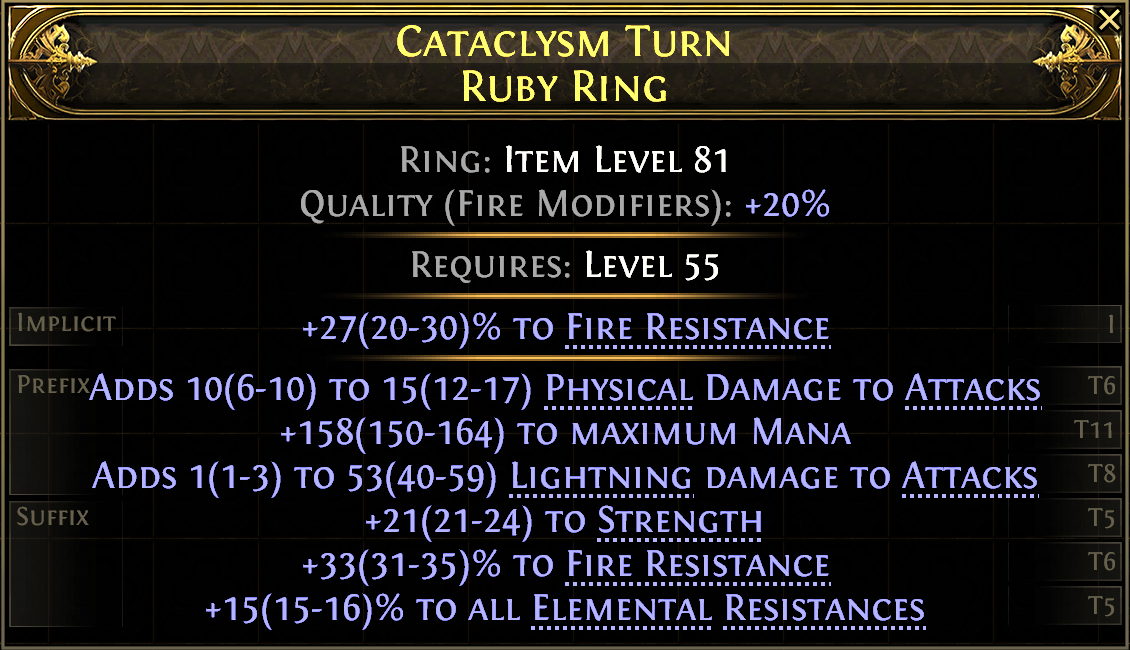
opens this price check window:
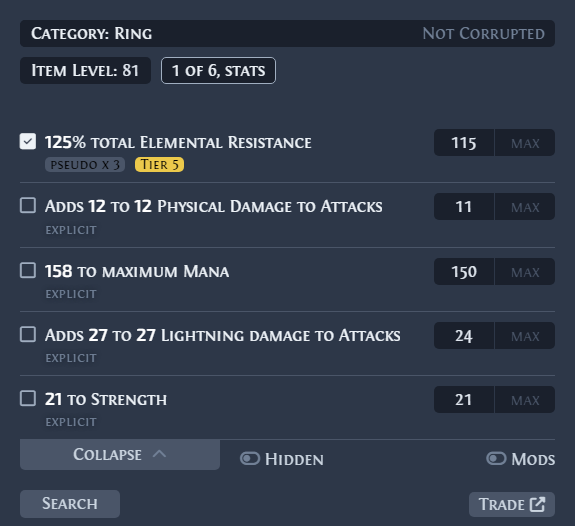
Each filter is one stat of the item, and the trade search uses the ticked filters. Kalandra ticks some filters and searches at once. Which stats matter depends on the build that would use the item, so for a rare item, tick the stats that matter and press Search again. Perform an auto search, when pressing in Settings, Price check has one toggle for each price check hotkey that turns this first search on or off.
Some mods have no filter of their own, because Kalandra adds them into a pseudo stat. On this ring, three resistance mods form one filter, total Elemental Resistance, marked pseudo x 3. The Hidden toggle switches the list to the stats that Kalandra hides by default.
The two boxes next to each filter are the minimum and maximum value for the trade search. Kalandra fills in a minimum below the item's own value, by the percentage in Settings, Price check, Fill stat values (10% by default), so the search also finds items with slightly lower rolls. Exact value uses the item's own value. An exact search, such as for a normal or unidentified item, takes at most 2%, as Price check explains. Type in a box to change it.
Price check explains every part of the window, and Features lists everything else Kalandra does.