
Features
Each section says what one feature does and how to open it, and links the page with the details. The terms used here, such as overlay and widget, are defined in Quick start. Widgets explains the main button bar of the overlay and how to move, edit, hide and delete widgets.
Price check
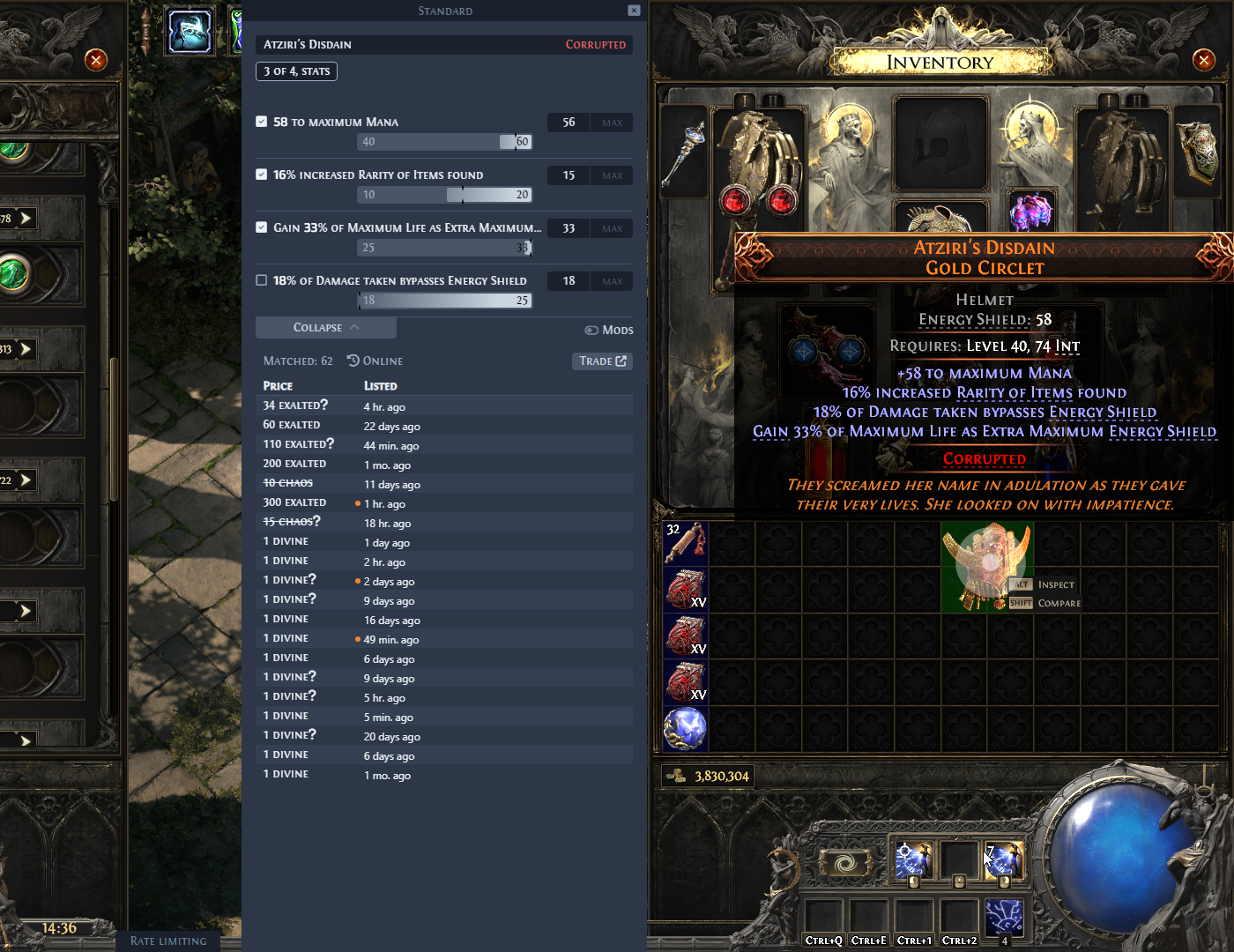
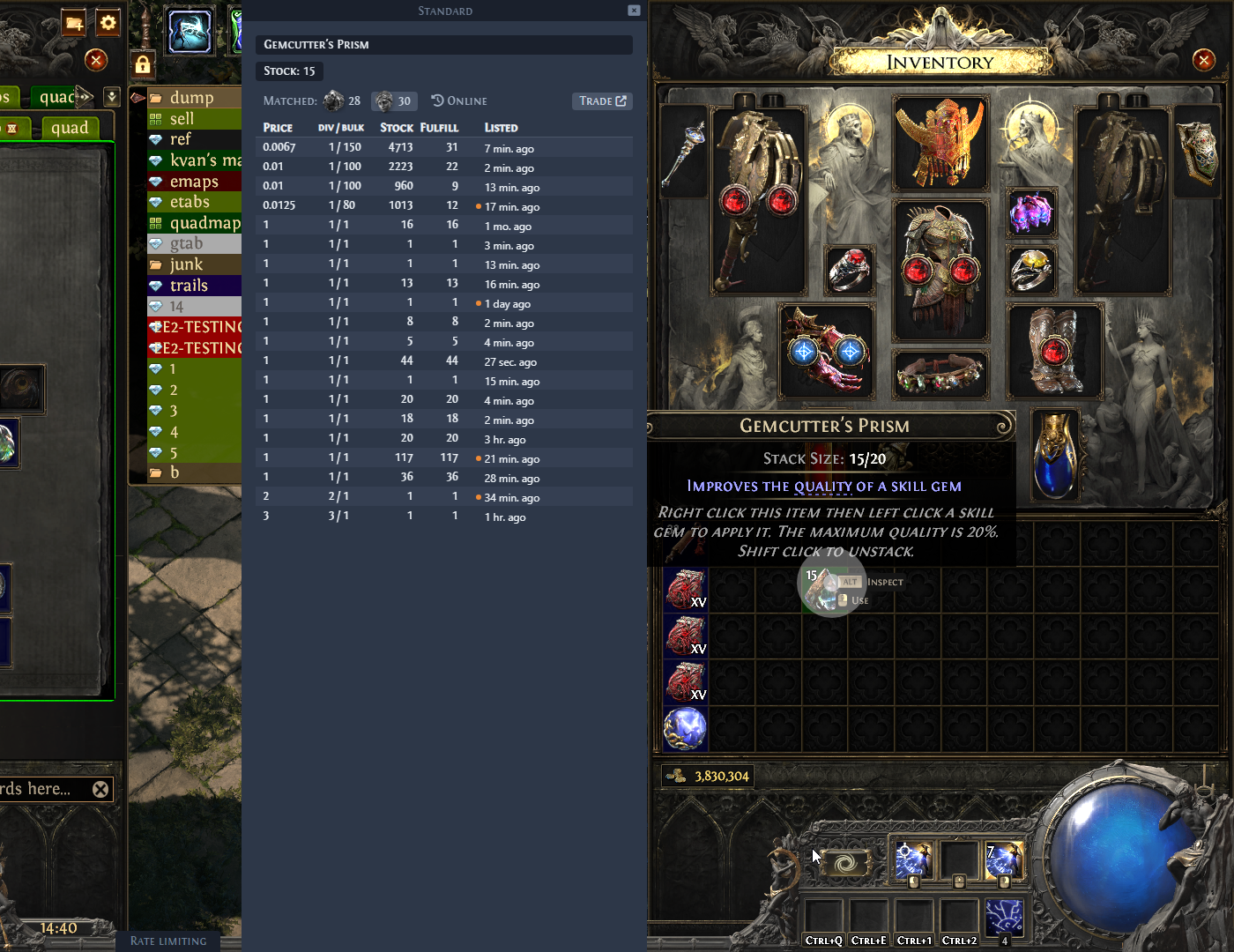
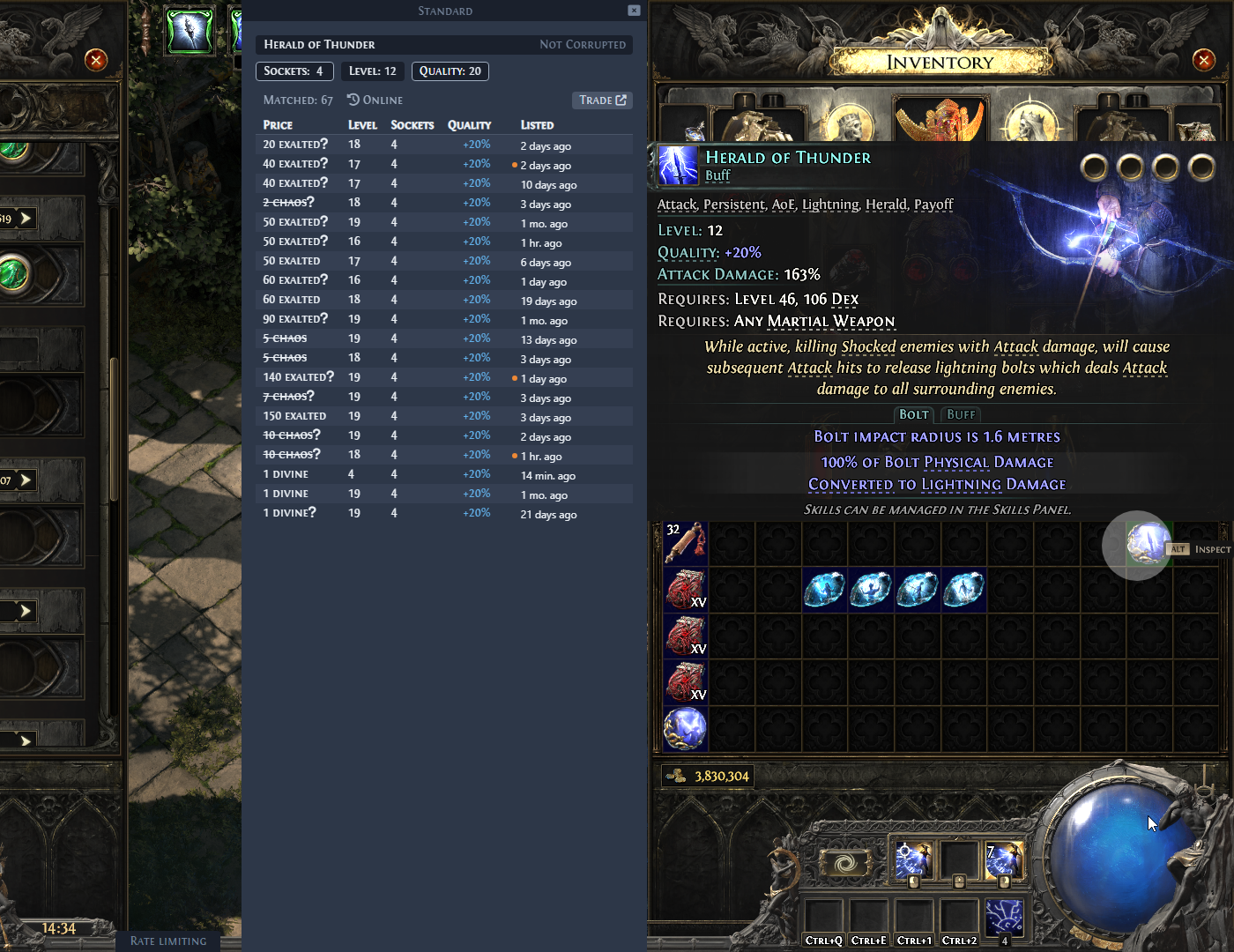
Hover an item in the game and press Ctrl + D. Kalandra builds a search for the official trade site from the item's stats and lists the matching items with their prices. For a rare item, it waits until you tick the stats that matter and press Search. For currency it lists bulk offers with their stock.
For items in its price file, such as currency and uniques, the window also shows an estimated price and, when the file has one, its trend over the last 7 days. Kalandra reads that price from its own price service at kalandra.ashoal.com, which builds the price files from poe.ninja once an hour. Kalandra does not request prices from poe.ninja itself.
An experimental suggested price, on by default, works out a price, a range and how reliable they are from the listings themselves, which also covers rare, magic and normal items.
To price check item text copied anywhere else, paste it into the Price check (Ctrl + V) box in the main button bar.
Details: Price check. For a private league, see Private leagues.
Item info
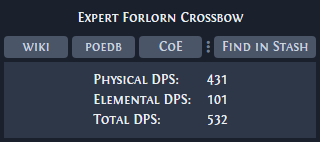
Shows a summary of the item under the cursor, such as weapon DPS, with buttons that open the item on the wiki, PoEDB or Craft of Exile, or search your stash for its base type. It has no default hotkey: set one in Settings, Hotkeys, Map check / Item info. Each button can also have its own hotkey in Settings, Item info.
Details: Item info.
Map check
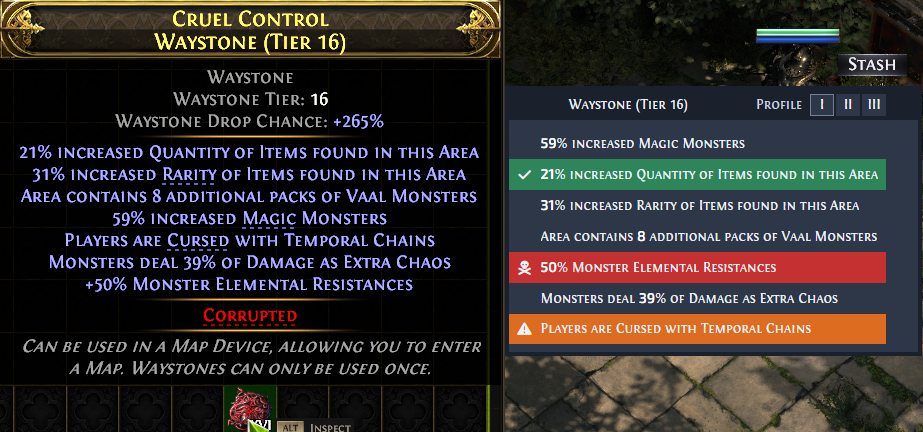
For a waystone, the same hotkey opens Map check instead. Map check lists the waystone's mods and shows the mark of each mod: dangerous, warning, good or none. Click a mod to change its mark. Three profiles keep three separate sets of marks. Settings, Map check lists every waystone mod with its mark, and its Only selected toggle shows only the marked mods.
Details: Map check.
Stash search
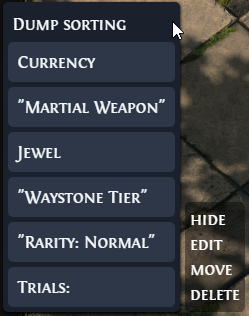
A Stash search widget holds saved search texts and regular expressions (patterns that match text) for the game's search box. When you click an entry or press its hotkey, Kalandra presses Ctrl + F in the game, pastes the text and presses Enter. Entry hotkeys have no default, and they work only while the widget's Keys toggle is on. Kalandra starts with two Stash search widgets, Map rolling and Dump sorting: click either name in the main button bar to show it.
Details: Stash search.
Stash prices
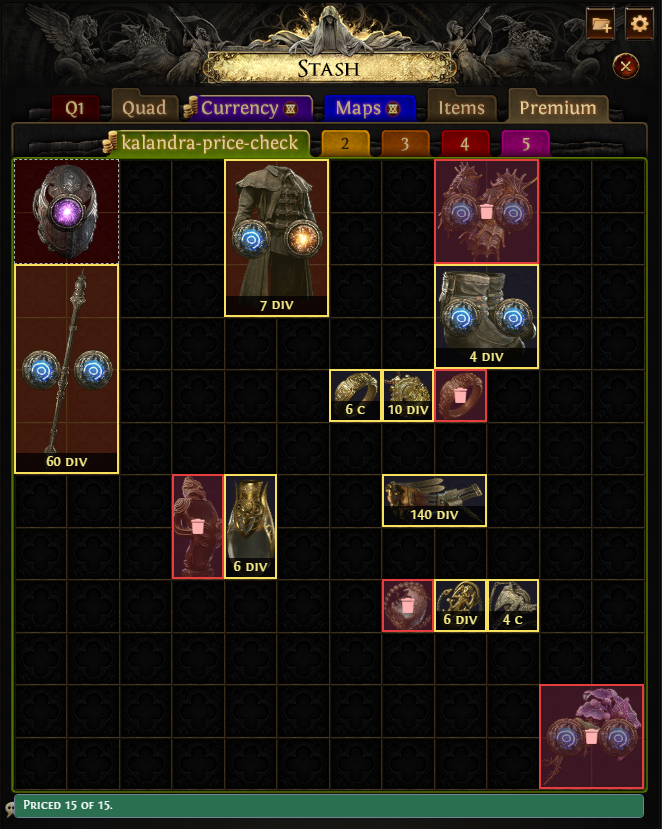
Reads one public stash tab of yours from the trade site every few minutes, without a key press, lists the items in it that have no price, and prices each of them as a price check would. When you open that tab in the game, it marks each item over the stash with its price, or as trash below a threshold. It is off until you turn it on in Settings, Stash prices, and it uses trade searches only within the budget you set there.
Details: Stash prices.
Chat commands
A chat command sends a line of text to the game chat with one key. By default F5 sends /hideout and F9 sends /exit. Four more commands, such as /invite @last, have no hotkey until you set one. Add, change and remove commands in Settings, Chat.
Details: Chat commands.
XP tracker
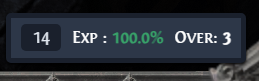
Shows your character's level, your experience multiplier, and how many levels you are over the bottom of the level range that gives full experience in the current area (Over). It reads the game's log file, Client.txt, which Kalandra does not read until you turn on Allow reading of Client.txt file in Settings, General. Click XP in the main button bar to show it.
Details: XP tracker.
Item search
Finds an item by name, without holding it, and shows its estimated price from the price file. Click the magnifier icon in the main button bar, choose Skill Gems, Uniques or Base Items and type a name. Select adds a result to a row at the top of the widget, and a click on an item in that row opens its price check.
Details: Extra widgets.
Image strip
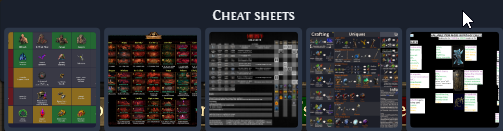
Shows your own images on the overlay, such as cheat sheets. To add a strip, hover over the three dots in the main button bar, then click Image strip. Use its edit button to add, order and remove images.
Details: Extra widgets.
Stopwatch
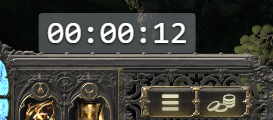
A timer on the overlay, with start, pause and reset buttons. To add one, hover over the three dots in the main button bar, then click Stopwatch. Its Start and Pause and Reset hotkeys have no default; set them with its edit button.
Details: Extra widgets.
Notepad
A text note on the overlay. To add one, hover over the three dots in the main button bar, then click Notepad. Kalandra saves the text with its settings. Use the edit button to rename the note or change its width.
Details: Extra widgets.
Item data
Item Data Collection is an experimental feature that adds the Library widget, which collects crafting results. Start a session in the widget, and each press of its Log item to csv hotkey adds the item under the cursor to the session's CSV file. The feature is off until you turn on Enable experimental features and then Item Data Collection in Settings, General. A book icon in the main button bar then shows the widget. While the feature is on and Kalandra reads Client.txt, Kalandra also writes the entries it reads from that log to client-log.ndjson in the same folder.
Details: Item data and Client log file.
Stash tab scrolling
Hold Ctrl and turn the mouse wheel, with the cursor not over the stash, to switch to the next or previous stash tab.
Details: Settings.
Settings
Press Shift + Space and click the cog icon in the main button bar to open the Settings window. Right-click the Kalandra icon in the system tray for its menu, which also opens the config folder and quits Kalandra.
Details: Settings and Command-line options.