XP tracker
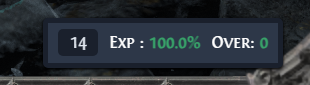
The XP tracker is a widget that shows your character level, your experience multiplier in the current area, and how far you are from the level penalty. The experience multiplier is the share of each monster's experience that you get, from 1% to 100%. The widget is based on the experience tracker in PoE-Leveling-Guide.
Turn it on
The widget reads the game's log file, Client.txt, which the game writes while it runs. Reading it is off by default.
- Open the overlay, click the cog icon in the main button bar to open the Settings window, and go to
Leveling. - Check
Allow reading of Client.txt fileand clickSave. - Open the overlay and click
XPin the main button bar.

The same checkbox and the PoE log file field are also on the General page. The XP button is in the main button bar only while Allow reading of Client.txt file is checked and saved. A click on Save while it is unchecked also hides the widget. Checking it again and clicking Save adds the button back, and Kalandra reads the log again.
Find the log file
When PoE log file is empty, Kalandra looks for Client.txt in the default game folders of Windows and Linux, which Settings lists. On macOS it has no default folder, so enter the full path of your Client.txt in PoE log file and click Save.
If the widget does not update, open the Settings window and go to Debug:
No log file foundmeans that Kalandra can readClient.txtin none of these folders. A line before it,Cannot read a default log file: <reason>, names a file that exists but that Kalandra cannot read, such as one with the codeEACCESwhen Kalandra has no permission to read it.Found 2 log files, please enter one into settings:means that both the standalone and the Steam file exist.Failed to watch file: <reason>means that Kalandra could not open the log file. The reason starts with an error code, such asENOENTwhen the file does not exist orEACCESwhen Kalandra has no permission to read it.
In each case, enter the full path of your Client.txt in PoE log file and click Save. Each click on Save looks for the file again, even when the field has not changed, for example after the game has created the file.
What Kalandra reads
Kalandra reads new lines as the game writes them, starting at the end of the file. When the file gets shorter, or is deleted and written again, Kalandra reads it from the start. When Kalandra starts, the widget uses level 1 for you and for the area. You can type your level into it, and two kinds of log lines update it:
<character> (<class>) is now level <N>sets your level.Generating level <N> area "<area>" with seed <N>sets the area level. Towns and hideouts do not change it. EnteringG1_1, the first area of the campaign, also sets your level to 1, because a new character starts there.
When Kalandra fails to read a line, it skips the line and reads the lines after it. The first such line after Kalandra starts writes Skipped a Client.txt line that failed: <reason> to the Debug page. Report it on GitHub with the lines of that page.
Kalandra does not store the log. If you also turn on the experimental Item Data Collection feature, Kalandra writes the events it reads, such as level ups, area changes and deaths, to client-log.ndjson in the output folder of that feature. By default this is the apt-data\csv-data folder of Kalandra's data folder (%APPDATA%\kalandra on Windows). Client log file describes the file.
Read the widget
- The number on the left is your level. It updates on each level up. To set it yourself, click it, then type your level or turn the mouse wheel over it.
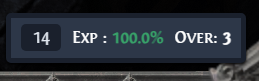
Expis your experience multiplier in this area: green at 100%, red below. It shows whileShow experience gain percentageis checked on theLevelingpage, which is the default.Exp *marks a value the formula has no test data for, as The formula explains.Overis how many levels higher an area can be than this one while you still get full experience, so the area level plusOveris the highest area level that gives you 100%. It is green at 0 or 1, and red below 0, where the area is too far above your level and you lose experience.

The widget first opens near the bottom of the screen, right of center. Use its move button to place it elsewhere. It stays on screen after you close the overlay. Hide it with its hide button. The edit button opens the Settings window with only the Leveling page, which holds the XP tracker settings. The widget has no delete button. See Widgets for the buttons.
The formula
The XP numbers come from data gathered by the speedrunner CrimsonCasts (YouTube, Twitch).
The experience you get from a monster is its base experience times the multiplier. The multiplier depends on your level, P, and the area level, A.
The safe zone is the number of levels an area can be above yours while you still get 100%. Its formula is the same as in Path of Exile 1, except that the safe zone is 0 unless the area level is higher than yours. Any area below your level reduces your experience.

Outside the safe zone, D is how many levels the area is outside it, and the widget computes the multiplier from it:
D          = max(|A - P| - SafeZone, 0)
multiplier = max(1%, ((P + 5) / (P + 5 + D^2.5))^1.3)
Over       = floor(P / 16) + 3 - (A - P)
Path of Exile 1 uses the same multiplier formula with the power 1.5. The power 1.3 matches the data from CrimsonCasts more closely.
The data has no test results for areas above level 70 or for characters at level 95 and higher, and the formula leaves out the extra multipliers that Path of Exile 1 uses there. In those cases the widget shows Exp *.
Use it while leveling
To get full experience, keep Exp at 100%, which means staying in the safe zone.
For the most experience per kill, keep Over at 0 or 1. The monsters are then the highest level you can fight without losing experience, and higher level monsters give more experience. For example, at level 14 in a level 14 area, Over is 3. In a level 17 area, Over is 0, and you still get 100% of each monster's experience. The cost is that the area is harder.