
Widgets
The overlay is the window Kalandra shows over Path of Exile 2. A widget is one panel in the overlay, such as a stopwatch or a list of stash searches. This page explains how to open the overlay, what the main button bar does, and how to move, edit, hide and delete widgets. The last section lists the page of each widget.
Open and close the overlay
Press the overlay hotkey while the game window is active. It is Shift + Space by default, and you can change it in Settings, Hotkeys, Overlay. While the overlay is open, it gets your mouse clicks and key presses. By default, a light grey tint then covers the screen.
To return to the game, do one of these:
- Press the overlay hotkey again.
- Press
EscapeorCtrl + W. - Click the empty area of the overlay. This works while
Clicking on the background focuses the gameis checked in Settings,General, which is the default.
The main button bar
The main button bar is the widget in the top left corner of the overlay.

- A button for each hidden widget. Click it to show that widget. The button shows the widget title or an icon: the cog opens the Settings window, the magnifier shows Item search,
XPshows the XP tracker whileAllow reading of Client.txt fileis checked in Settings, the book shows the Library widget while the experimental Item Data Collection feature is on, and the tags icon shows Stash prices whilePrice a stash tab in the backgroundis checked. A widget with no title shows#and a number. - The three dots. Hover over them to show the
add widget…menu, then click a name to add a new widget of that type:Stopwatch,Stash search,Image striporNotepad. You can add any number of each. The other widgets exist once and cannot be added. Price check (Ctrl + V). Paste item text into this box to price check it, for example text that you copied from the game earlier and saved.
A shown widget has no button in the bar, so to close it, use its hide button. To change this, click edit on the bar and turn on the Show button for active widgets switch. The bar then also has buttons for the shown widgets. The button of a shown widget has a lighter border, and clicking it hides the widget.
Widget buttons
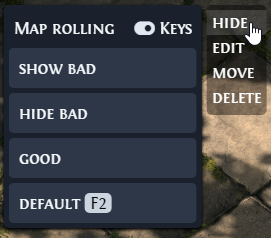
Hover over a widget to show its buttons. Not every widget has all four:
| Widget | Buttons |
|---|---|
| Stash search, Image strip, Notepad | hide, edit, move, delete |
| Stopwatch | edit, move, delete |
| XP tracker, Library, Stash prices | hide, edit, move |
| Item search | hide, move |
| Main button bar | edit, move |
| Item info, Map check | hide, edit |
| Price check, Settings window | none |
Move
Click move to start moving the widget. A white square marks its anchor, the point of the widget that stays in place when the widget changes size. Drag the white square to move the widget. The dark squares on the corners or edges are other anchor points: drag one to move the widget by that point, and it becomes the new anchor. Click move again to stop moving.
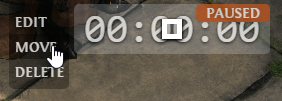
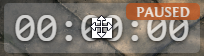
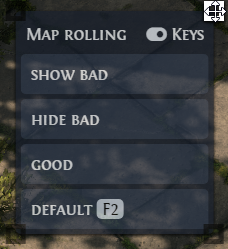
Kalandra stores the position as a share of the game window's width and height, so a widget keeps its place when the window size changes.
Edit
Click edit to change a widget. Image strip, Notepad and the main button bar change in place: they show their fields in the widget, and you click edit again to finish. The other widgets open the Settings window, and a change applies when you click Save.
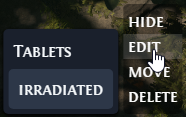
Hide
Click hide to hide the widget. To show it again, click its button in the main button bar.

Delete
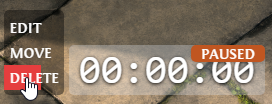
Press and hold delete for one second. The button fills with red while you hold it, and releasing it earlier cancels the delete. Deleting removes the widget with its settings and hotkeys, and it cannot be undone. A preset widget, such as Map rolling, does not come back after you delete it.
Which widgets stay on screen
Most widgets close with the overlay and come back when you open it again. These do not:
- The XP tracker stays on screen over the game while it is shown.
- A stopwatch stays on screen while it runs, or while it holds a paused time of one second or more.
- The Library widget stays on screen while a session runs.
Price check, Item info and Map check open and close with their own hotkeys, which their pages describe.
Hotkeys
Stash searches, stopwatches and Chat commands have hotkeys. Settings lists the rules that every hotkey follows, such as the keys that Kalandra does not register because it presses them itself to copy items and to type into the game.
Widget pages
- Price check, Item info and Map check open when you press their hotkeys over an item.
- Stash search types saved searches into the stash search box.
- Stash prices reads a public stash tab of yours in the background.
- XP tracker shows your experience multiplier while you level.
- Extra widgets covers the image strip, stopwatch, notepad and item search.
- Item data covers the Library widget of the experimental Item Data Collection feature.