
Map check
Map check is a window that lists the modifiers of a Waystone and colours the ones you marked. It shows at once whether a Waystone has a modifier you want to avoid or one you look for.
Open it
Set a key in Settings, Hotkeys page, Map check / Item info. It has no key by default. Point at a Waystone that is not unique and press the key. The same key opens Map check for an Expedition Logbook. Any other item opens Item info.
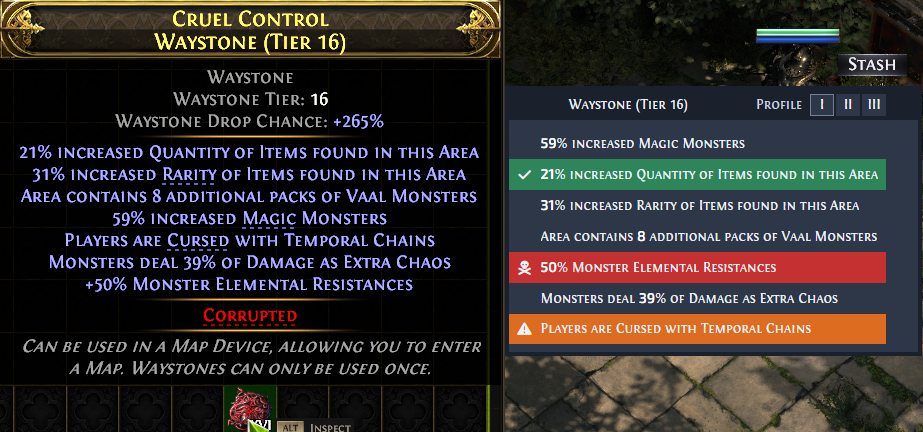
The window
The title line shows the item's base type and the Profile buttons I, II and III. Each profile keeps its own marks, so you can keep one set of marks per character. The current profile has a border.
Each modifier of the item is a row. Click a row to mark that modifier. Each click moves to the next mark:
- danger: red, with a skull,
- warning: orange, with a triangle,
- good: green, with a check mark,
- no mark, and the modifier counts as seen.
A mark belongs to the modifier without its numbers, so it shows on every Waystone you check after that, in the same profile. It keeps working after you change the Language setting. An increased and a reduced value of the same modifier take separate marks. Kalandra saves the marks you set in this window when the window closes.
Other lines the window can show:
- Not recognized modifier and the text: a modifier that Kalandra cannot match to its game data.
- Item has no modifiers.
- Wording of some stats has been changed. and the rest of that message: the current profile has a mark for a modifier that is not in the game data of the current language. Delete those marks in the settings to hide the message.
With Show icon for new mods on, a crossed eye icon shows at the end of each row that has no mark and is not seen. Click the icon to mark the modifier as seen, which hides the icon. Click the same place again to undo it.
Default marks
The default marks are in profile I. #% maximum Player Resistances is a warning. Monsters reflect #% of Physical Damage and Monsters reflect #% of Elemental Damage are danger, and Area contains two Unique Bosses is good. Those last three are not in the game data of this version. While profile I is selected, the settings list shows the marks that are not in the game data of the current language as outdated, and the window shows the wording message until you delete them. Profiles II and III start with no marks.
Marks from earlier versions
Earlier versions saved each mark as the modifier text in the language of that time. Kalandra converts such a mark when it loads the game data of that language, at start and after a language change, and keeps a mark it cannot convert yet. When two saved marks belong to the same modifier, such as two wordings of it, it keeps the first.
Settings
Settings, Map check page, lists every Waystone modifier in the game data. Each form of a modifier that the window shows, such as its increased and its reduced form, is one row, named by its first wording. The page edits the marks of the current profile, which is the profile last selected in the Map check window. Changes apply when you click Save.
- Search... shows only the rows with a wording that contains every word you type.
- Only selected shows only the modifiers marked in the current profile.
- Show icon for new mods adds the crossed eye icon described above. It is off by default.
- Stat (found: N) heads the list, where N is the number of rows shown. Rows marked outdated come first, named by the English text of the modifier, or by the saved text of a mark from an earlier version.
- The three columns set the warning (orange triangle), danger (red skull) and good (green check) mark. On a row with no mark they show when you point at the row.
- The x button on a marked row removes its mark from the current profile. The other profiles keep their marks.
- On an outdated row, the red trash button deletes the mark.